Wednesday, 4 September 2013

Sharepoint 2013 - Get SP List Title, ID, RelativeURL using CSOM

There may be some condition where we need to get SP List properties like ID, relative URL.

Following is the CSOM code to get SP List properties.

<script type="text/javascript">

var list;
var listRootFolder;
ExecuteOrDelayUntilScriptLoaded(init, "sp.js");

function init() {

    //load site
   var currentcontext = new SP.ClientContext.get_current();
   list = currentcontext.get_web().get_lists().getByTitle('LIST_NAME');
   listRootFolder= list.get_rootFolder();

    currentcontext.load(list, 'Title', 'Id');
    currentcontext.load(listRootFolder);
    currentcontext.executeQueryAsync(Function.createDelegate(this, result), Function.createDelegate(this, oncListQueryFailed));
}

function result() {
var listID = list.get_id();
    var listName= list.get_title();
var listURL = listRootFolder.get_serverRelativeUrl();
alert(listID + listName + listURL);
}

function oncListQueryFailed(sender, args) {
    alert('Request failed. ' + args.get_message() + '\n' + args.get_stackTrace());
    }

</script>


Check all the properties for SP List.

Sunday, 7 July 2013

SharePoint 2013 - Community Site


In SharePoint 2013, a Community Site is a new site template that provides a forum experience in the SharePoint environment. Use communities to categorize and cultivate discussions among a broad group of people across organizations in a company. 

1. How to create : As with any site template in SharePoint, Community template can be created in two ways:
1.1 Site Collection level
1.2. Site level

1.1 Site-Collection level (Community Portal template) : It has nothing but a home page which provides search - driven results( content search web-part)  to display any sites that use the Community Site template in the SharePoint farm.

You can edit the Community Portal Home page to add other Web Parts and customize the page. When deployed in the same environment as My Sites, users can access the Community Portal from the Sites link on their My Sites. 

You can have only one Community Portal per SharePoint farm.


This is a sample community portal template and it has a search driven web-part which is showing 2 community site, with each community site you will also see the respective numbers of discussions/members/replies . And if you click on the site you will be redirected to that community site.

1.2. Site level (Community Site Template) : The Community Site template is a collaboration site template that is based on the Team Site template, and contains the same base features such as lists and libraries, a wiki-page editing experience, and so on.

There are two ways to create a community site template:
1.2.1 Create a fresh new Community Site:
1.2.2 Activate Community feature in existing site:

1.2.1 Create a fresh new Community Site : Go to Site Contents >> Create new sub-site >> Select community template.

1.2.2 Activate Community feature in existing site : If you have a site which is created from other site template like Team Site, Project Site etc , in that site also we can have community site template features.

Here , the advantage is we can have features of two site template in one.

Go to Site Settings >> Site Features >> Activate feature Community Site Feature
           

1.2.3 Features of Community Site: Once we create a community site template using either of the above two steps , the following features we get here.

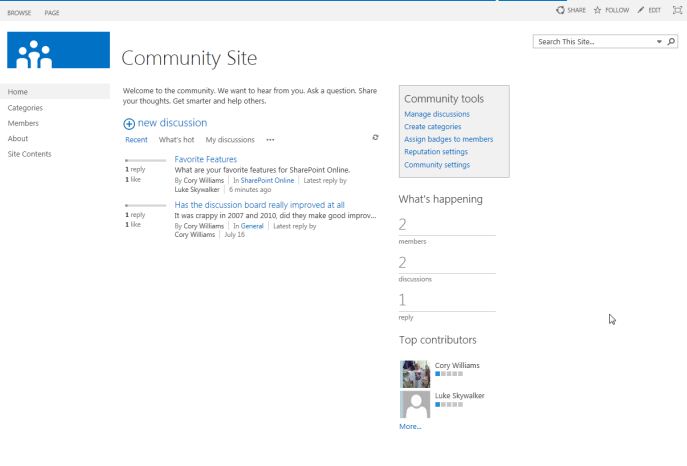
Home Page : This is the home page of a community site where we have community web-parts , we can customize the home page if we want.
Discussion web-part : The web-part at the center of the page is discussion web-part. Here, you can add a new discussion, like/reply to previous discussion. We have sub menus inside the web-part where we can view recent discussion,Whats Hot Discussion ,My Discussion etc . 

There are other web-parts also at right side of home page.


Categories : Category helps in organizing the discussion. We can segregate the discussion according to its category.

Each category have its name, description , picture associate to it..
Also you can keep track of the no. of discussion/replies.


Members : It gives the list of all the users who have joined the community or done some activity in community site.

The members page also shows the no. discussion started, replied, best replied and member Joining date.


Reputation Settings :   Reputation helps us to identify experts in community and also helps us to identify the contribution of each members.


Microsoft has defined inbuilt achievement points for each post, like/reply, best reply and then according to a member points a member is assigned level against his account.

We can customize the achievement / level settings and give our own set of points system.

Community Settings : Here we can define community established date, Auto approval of permission request and reporting of offensive content.

As with social sites not everybody like each other and can post abusive content against a member.
To prevent this, administrator can enable reporting of offensive content and see it on Forum.

So if a member sees a discussion/post being offensive he/she can report it as offensive and Administrator then have the option to permanently delete or reinstate the content.


Bottom-Line : SharePoint 2013 has nice social / micro-blogging features as compared to 2010 , which helps us to increase enterprise collaboration in any organization.
Also search is so powerful here and especially Content-by-search web-part which is used in Community Portal template home page.

Sunday, 9 June 2013

Sharepoint 2013 Search - Adding a hover panel to a content search webpart display template.

In sharepoint 2013 there is a new powerful webpart called Content By Search Webpart which is a substitute  of CQWP and also get rids of XSLT and uses search instead.

In Content Search WebPart there are in total 7 default display templates like Two Lines, Video,Picture on top 3 lines on bottom etc.

But all of the these template does not have a hover panel like we see in a search results. See below image


So to add hover panel to content search display templates we need to customize the template.

Open designer.
1.Go To >> All files >> _catalogs >> master page >> display templates >> content webparts >> your template ( in my case item_pictureontop.html)
2. right-click, and select Edit File in Advanced Mode:
3. Paste this code at the top as shown in the image below:

var id = ctx.ClientControl.get_nextUniqueId();
var itemId = id + Srch.U.Ids.item;
var hoverId = id + Srch.U.Ids.hover;
var hoverUrl = "~sitecollection/_catalogs/masterpage/Display Templates/Search/Item_Site_HoverPanel.js";
$setResultItem(itemId, ctx.CurrentItem);
ctx.currentItem_ShowHoverPanelCallback = Srch.U.getShowHoverPanelCallback(itemId, hoverId, hoverUrl);
ctx.currentItem_HideHoverPanelCallback = Srch.U.getHideHoverPanelCallback();

Notice I am using the out-of-the-box Item_Site_HoverPanel.js .As i want my results to display like a site item.You can use any OOTB hover js file or you create new one also.

4. Next, scroll down to the main <div> and change the id to use _#= $htmlEncode(itemId) =#_
Add the following code to that very same <div> tag:

onmouseover="_#= ctx.currentItem_ShowHoverPanelCallback =#_" onmouseout="_#= ctx.currentItem_HideHoverPanelCallback =#_"


5. Now add the following <div> after the first <div>:
<div id="_#= $htmlEncode(hoverId) =#_" class="ms-srch-hover-outerContainer"></div>
Inside this div the hover content will be rendered for each item.
Save the changes to the template.
This is how we can add a hover panel to content search webpart display templates.

Saturday, 8 June 2013

CSS + Center align HTML element content using CSS

In case we need to center align HTML element content using CSS.
Using below ways we can do it.

1. If element contains text, then we can do it using text-align property
text-align:center;

2. If element contains child HTML elements inside it.
position:relative;
float:left;
left:50%; 

Saturday, 1 June 2013

Sharepoint 2013 - Get all Site templates using Client object model

Code to get all site templates both inbuilt and custom site template ID using CSOM.


var templateCollection ;
function GetWebTemplates()
{

var context = new SP.ClientContext.get_current();
var web = context.get_web();

templateCollection = web.getAvailableWebTemplates(1033, false);

context.load(templateCollection);
context.executeQueryAsync(Function.createDelegate(this, this.success), Function.createDelegate(this, this.failed));
}

function success() {

var Templates = "";
var siteTemplatesEnum = templateCollection.getEnumerator();

while(siteTemplatesEnum.moveNext())
{
var siteTemplate = siteTemplatesEnum.get_current();
Templates +=  siteTemplate.get_name() +   ',';
}

alert("Site Templates - " + ',' + Templates);
}

function failed(sender, args) {
alert("Failed");
}


While you can get all the inbuilt site template ID from below link

And custom site template would have a format like this.
{GUID}#TemplateName

Sharepoint 2013 - Create a site from a custom site-template using client object model

Here, is the code to create a site from a custom site-template using CSOM.

function CreateSite() {

        //load site
   var currentcontext = new SP.ClientContext.get_current();
   var currentweb = currentcontext.get_web();
   //site object
   var webCreateInfo = new SP.WebCreationInformation();
   //set values
   webCreateInfo.set_description("This site is created from CSOM");
   webCreateInfo.set_language(1033);
   webCreateInfo.set_title("My Title");
   webCreateInfo.set_url("/myURL");
   webCreateInfo.set_useSamePermissionsAsParentSite(true);
   webCreateInfo.set_webTemplate("MyTemplateID");
   //add sub site
   this.NewWebsite = this.currentweb.get_webs().add(webCreateInfo);
   //Load and execute query
   currentcontext.load(this.NewWebsite, 'ServerRelativeUrl', 'Created');
   currentcontext.executeQueryAsync(Function.createDelegate(this, this.Success), Function.createDelegate(this, this.oncListQueryFailed));    
}

function Success() {
alert(this.NewWebsite.get_serverRelativeUrl());
}

function oncListQueryFailed(sender, args) {
    alert('Request failed. ' + args.get_message() + '\n' + args.get_stackTrace());
}


Template ID is the most important thing here.It defines what is the type of site we are creating like would it be a Team Site,Blank Site, Wiki, Blog etc.
We can find all default template ID from here 
https://www.nothingbutsharepoint.com/sites/devwiki/sp2010dev/pages/site%20templates%20in%20sharepoint%202010.aspx

But , since here we are using our own custom site template . So we can get our template id from the code given in this blog.

Get web-template


Your custom site template id would  be in this format.
{GUID}#TemplateName

Monday, 27 May 2013

Sharepoint 2013 - Create a SP Group using CSOM javascript

In this example we will get to know how to create and assign permission to a SP Group using CSOM - client object model in javascript.

//Sample - http://msdn.microsoft.com/en-us/library/jj246414.aspx
function createSPGroups()
{
//Load new Site
   var currentCTX = new SP.ClientContext();
   var currentWEB  = currentCTX.get_web();

   //Get all groups in site
   var groupCollection = currentWEB.get_siteGroups();

   // Create Group information for Group
var membersGRP = new SP.GroupCreationInformation();
membersGRP.set_title('Group Name');
membersGRP.set_description('Use this group to grant people contribute permissions to the SharePoint site: ');


//add group
oMembersGRP = currentWEB.get_siteGroups().add(membersGRP);

//Get Role Definition by name (http://msdn.microsoft.com/en-us/library/jj246687.aspx)
//return SP.RoleDefinition object
var rdContribute = currentWEB.get_roleDefinitions().getByName('Contribute');

// Create a new RoleDefinitionBindingCollection.
        var collContribute = SP.RoleDefinitionBindingCollection.newObject(currentCTX);
     
        // Add the role to the collection.
        collContribute.add(rdContribute);

// Get the RoleAssignmentCollection for the target web.
        var assignments = currentWEB.get_roleAssignments();
     
 // assign the group to the new RoleDefinitionBindingCollection.
var roleAssignmentContribute = assignments.add(oMembersGRP, collContribute);

currentCTX.load(oMembersGRP);

//Execute Query
currentCTX.executeQueryAsync(Function.createDelegate(this, this.onQuerySucceeded), Function.createDelegate(this, this.onQueryFailed));
}

        function onQuerySucceeded() {
            alert("Done");
        }

        function onQueryFailed(sender, args) {
            alert('Request failed. ' + args.get_message() + '\n' + args.get_stackTrace());
        }

Here, I my assigning a predefined permission level i.e. Contribute to the group.We can create our own custom permission level and assign to the group.Creating custom permission level will be discussed in upcoming blogs.